Your pulse jumps when the hiring manager smiles and says, “Tell me about a time you handled a project that was already failing.” The Zoom window sits there like a bright stage light. Your own face stares back from the corner. You know the story is somewhere in your head, but under pressure, it feels like reaching into a dark glove box at 70 miles an hour. That’s the moment this 2026 guide on How to Use an AI Interview Copilot in Zoom Interviews Undetected is really about.
Video interviews pile on extra mental load. You’re listening, watching your timing, tracking eye contact, fighting lag, and trying not to ramble. That cognitive overload is why interest in the AI interview copilot category has surged across tech, finance, and other high-pressure hiring markets.
This guide is published by WinOffer.ai. We wrote it to be genuinely useful, including the uncomfortable parts: limitations, employer concerns, privacy questions, and the ethical line between support and misrepresentation. You’ll learn how these tools work, how to choose the right type, how to set one up for Zoom, how to sound natural, and what risks still remain. No smoke. No mirrors.
What Is an AI Interview Copilot?
An AI interview copilot is a real-time assistant that listens to an interviewer’s question through local audio capture, generates structured response suggestions, and shows them privately on your screen. In plain English, it acts like a smart notepad that writes itself while you talk—except only you can see it.
Most tools in this category do three things:
- Audio capture and transcription — they pick up the interviewer’s question from system or microphone audio and turn it into text in real time.
- Intelligent answer generation — they create structured suggestions based on the question type and, in many cases, your resume and the job description.
- Private display — they show those suggestions in an overlay, panel, or private window designed to stay out of the interview flow.
That matters because a true AI interview assistant Zoom workflow is different from Zoom’s own AI features. Zoom AI Companion is a platform feature visible within the meeting environment and governed by Zoom’s own privacy and notice framework, as Zoom’s official privacy and security documentation explains. A copilot, by contrast, runs independently on your device.
And here’s the catch: “undetected” should be understood in a professional sense, not a sneaky one. You want the tool to stay out of screen sharing, out of the participant list, and out of the way of a normal conversation. Think training wheels, not autopilot.
How AI Copilots Actually Work
The Technical Pipeline
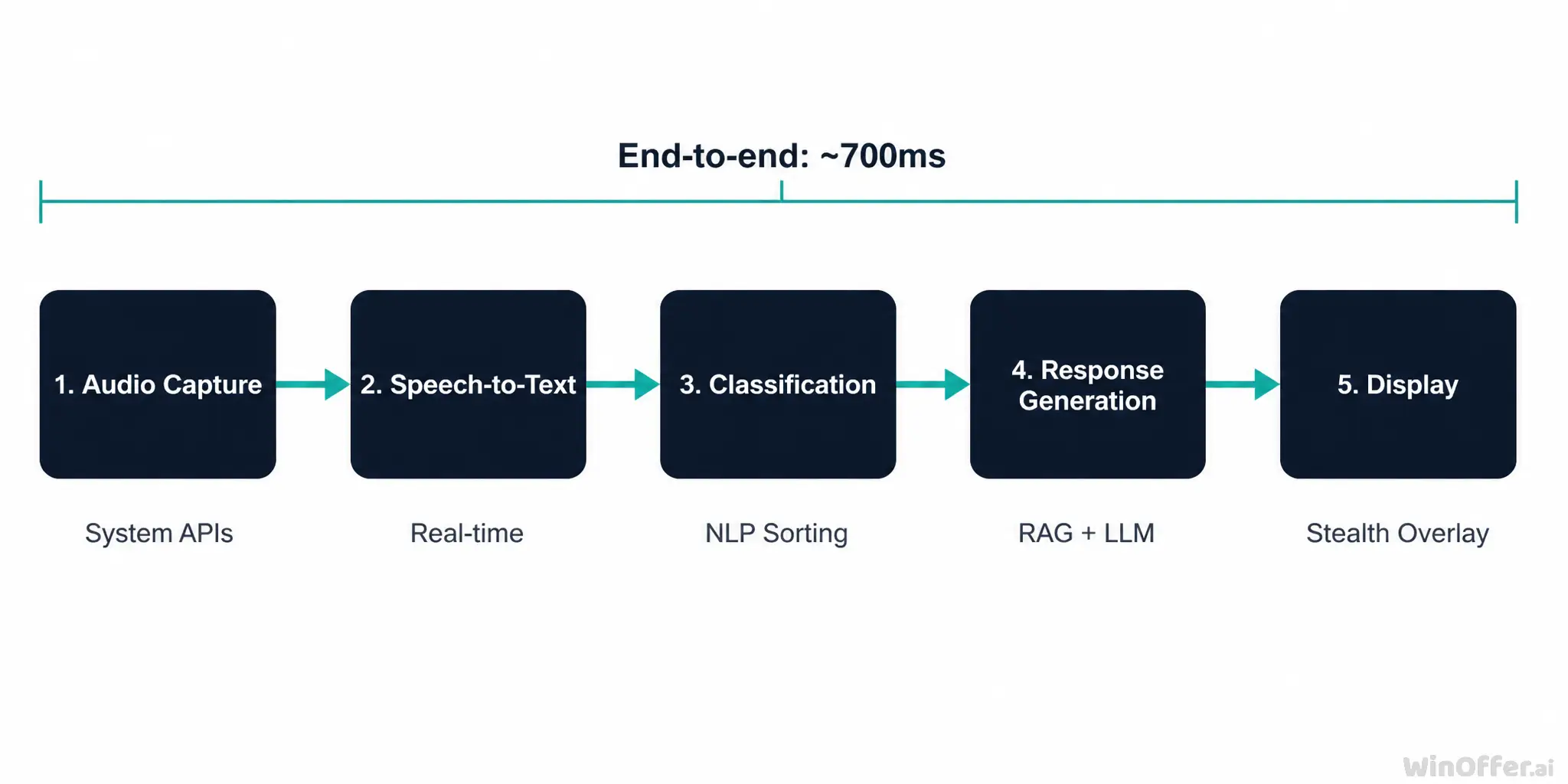
Under the hood, most copilots follow the same five-step chain. First comes audio capture. Instead of joining the meeting as a visible participant, the tool listens through OS-level audio APIs on your own machine, as multiple vendor explanations describe and as Microsoft’s Teams documentation makes technically plausible for local audio workflows.
Second comes speech-to-text. The question gets transcribed in real time. Third comes question classification. ‘s technical explainer describes NLP-based classification that sorts prompts into buckets like behavioral, technical, case, or situational. That step matters because the shape of a good answer changes with the question — and that’s essentially AI interview copilot how it works in practice.
Fourth comes response generation. This is where RAG, or retrieval-augmented generation, enters the picture. The system combines a language model with your uploaded materials so it can pull relevant details from your own background instead of serving canned advice.
Fifth comes display. Suggestions appear in a private overlay, PiP window, or desktop panel. ‘s testing reports about 700ms end-to-end latency on Zoom, and that number tells a useful story: at 700ms, the prompt lands before your natural “Let me think about that” pause feels awkward. That’s why real-time interview help can feel smooth when the setup is solid, even though it’s still doing a lot behind the curtain (vendor claim).
RAG Personalization — Why Your Answers Sound Like You
RAG works like a filing clerk with a flashlight. Your resume and job description get converted into searchable context, often through embeddings and retrieval steps. When a question arrives, the model pulls the most relevant details before generating the answer.
That’s why better inputs usually mean better outputs. If your resume is vague, the suggestions will drift. If your materials are specific, the answer has a better chance of sounding like your actual track record rather than generic internet wallpaper.
Three Architecture Types
Not all AI interview copilots are built the same, and architecture affects privacy, setup, and interview copilot stealth mode behavior.
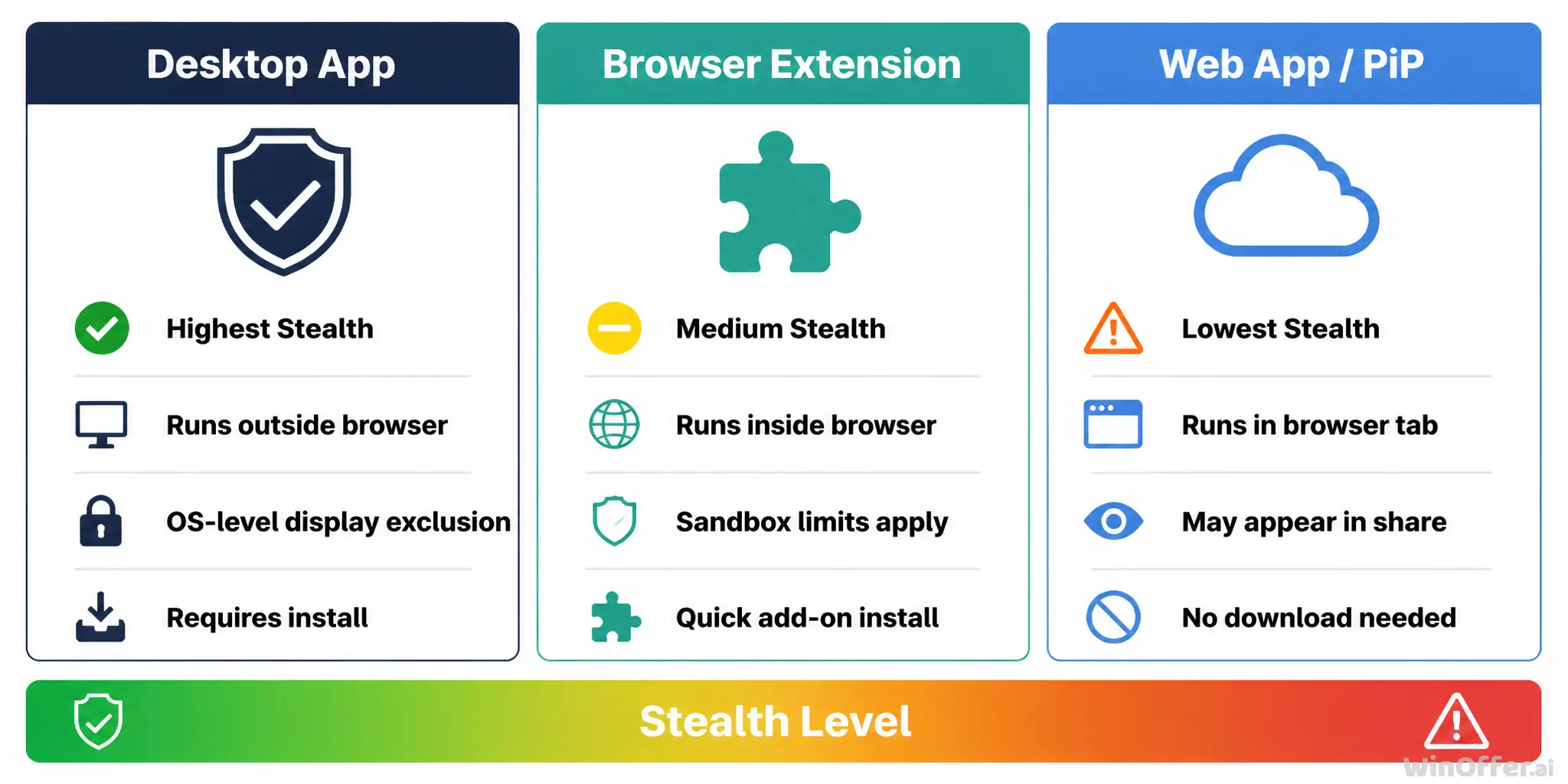
- Desktop App — runs outside the browser sandbox and may use OS-level display affinity flags such as NSWindowSharingNone on macOS and WDA_EXCLUDEFROMCAPTURE on Windows, as and platform developer references describe. Highest stealth, but requires installation.
- Browser Extension — runs inside the browser. Easier to start, but browser sandbox limits can affect what happens during screen sharing.
- Web App / PiP — opens as a browser page or Picture-in-Picture window. Fastest to access, lowest friction, and usually the weakest option for privacy during screen sharing.
What Can Zoom Actually See?
Here’s the direct answer to can Zoom detect AI interview copilot use in a standard call: Zoom does not natively scan your computer for third-party applications or report a list of your local desktop processes in its public privacy materials. Zoom’s official privacy and security documentation focuses on meeting content, platform AI features, recordings, and account-level data—not forensic inspection of every local app.
That said, “Zoom can’t see my whole computer” is not the same thing as “nobody can notice anything.” This topic has layers.
A key setting sits inside Zoom’s sharing flow: Screen Capture Mode. Technical guides and vendor documentation points to the Share Screen advanced setting, often described as “Advanced capture with window filtering,” as the control that affects which windows appear in the sharing picker. Desktop apps that rely on OS-level display exclusion may not appear there because the operating system marks them differently (vendor explanation).
So if you’re wondering how to use your AI interview copilot in Zoom interview settings without exposing it accidentally, this is half the battle: understand what you are sharing and what you are not.
What Zoom Shows vs. What It Doesn't
What Zoom Can Show What Zoom Cannot Show Shared screen content Other applications on your computer Participant list and video feeds Background processes or desktop apps Chat messages and reactions Your local audio routing Recording (if enabled by host) Content on a second monitor you don't share
This is also where the Zoom interview AI discussion gets more nuanced. Zoom itself is only one camera in the room. Other cameras may be watching too.
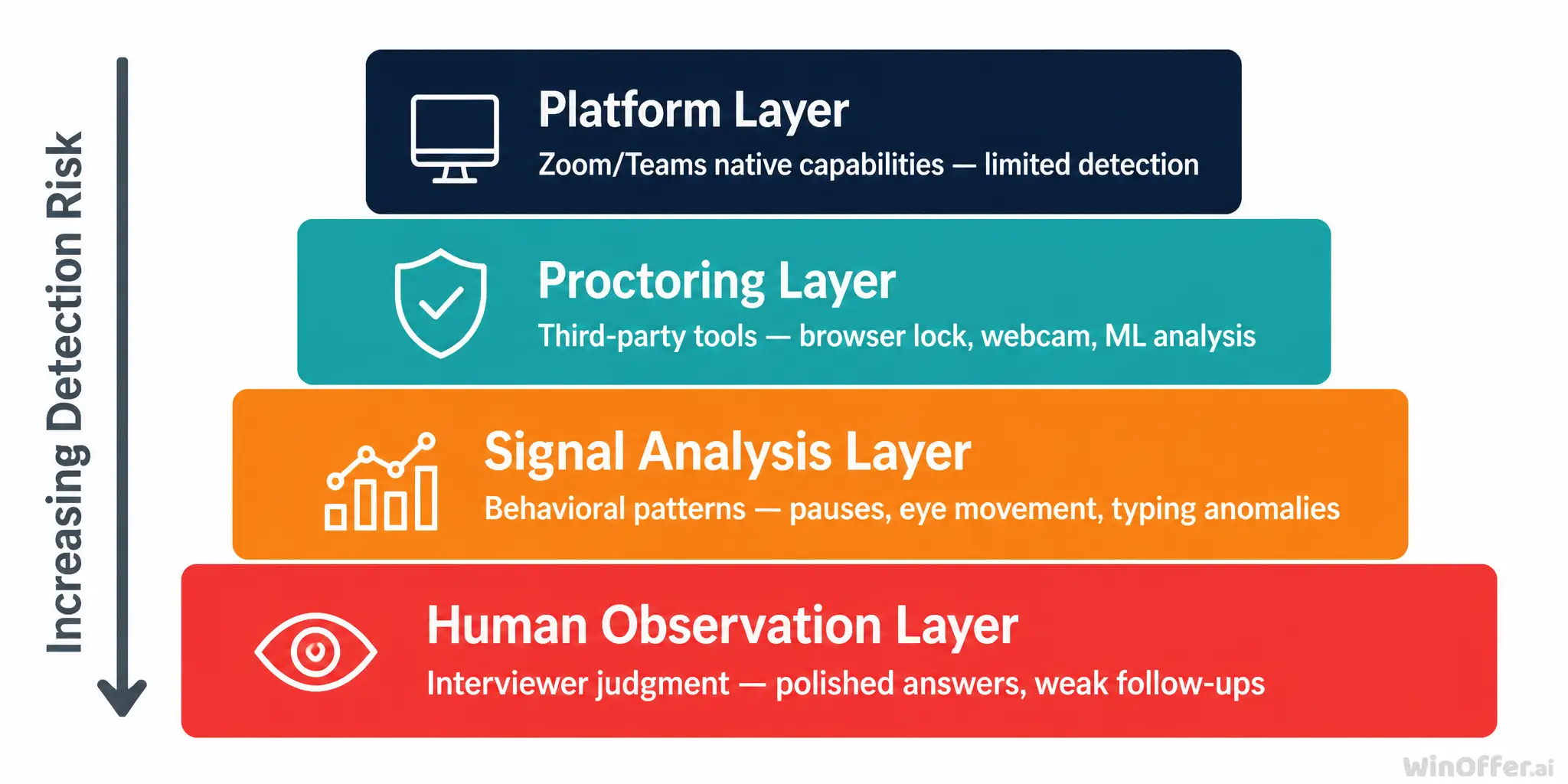
Here’s the four-layer framework:
| Detection Layer | Mechanism | Ability | Source |
|---|---|---|---|
| Platform layer | Zoom/Teams/Meet native capabilities | Does not publicly document third-party AI app detection; hosts can record and view participant activity | Zoom official docs, Microsoft Docs |
| Proctoring layer | Third-party monitoring tools | Browser lock, webcam monitoring, multi-device detection, ML behavior analysis | Honorlock, Glider AI |
| Signal analysis layer | Behavioral pattern review | Pauses, eye movement, typing anomalies, pasted text events | Proctoring vendor guidance |
| Human observation layer | Interviewer follow-up and judgment | Shallow polished answers, inconsistency, weak follow-up depth | Interview coaching blogs |
So yes, Zoom itself has limits. But the larger interview environment may not.
How to Choose the Right Copilot Type
This is a decision framework, not a product shootout. Your goal is to pick the architecture that fits your interview stakes, your device, and your tolerance for setup.
Desktop App vs. Browser Extension vs. Web App
| Factor | Desktop App | Browser Extension | Web App / PiP |
|---|---|---|---|
| Stealth Level | Highest (OS-level exclusion) | Medium (browser sandbox limits) | Lowest (may appear in screen share) |
| Setup Complexity | Requires download and install | Quick browser add-on | No install, just open a URL |
| Platform Compatibility | Works with any video call app | Browser-dependent | Browser-dependent |
| Response Speed | Typically fastest (native processing) | Good | Good |
| Best For | High-stakes interviews, coding rounds | Casual use, quick setup | Low-risk practice sessions |
If stealth and consistency matter most, desktop apps usually come out ahead. They sit outside the browser sandbox, and that matters because browser-based tools live closer to the same glass wall you may later share.
If you’re practicing, testing workflows, or using the tool as a light safety net, a browser extension or web app may be enough. If you’re on a locked-down company laptop and can’t install software, those lighter options may be your only practical route.
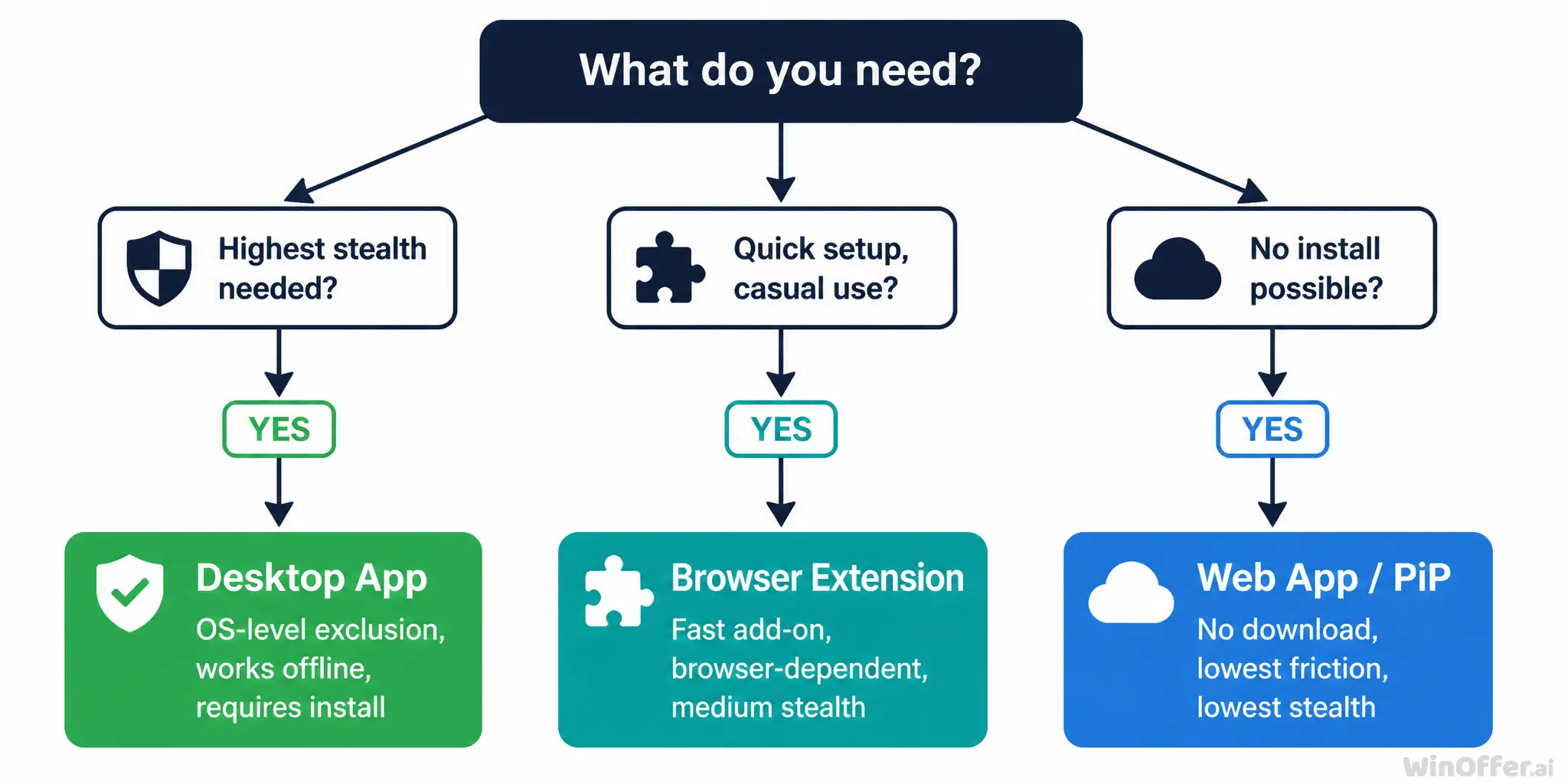
Built for this exact use case, desktop architecture has become the gold standard for interview privacy. WinOffer.ai, for example, uses native desktop architecture with OS-level display affinity as part of its approach to remaining invisible during screen sharing, which is a vendor claim rather than an independently verified guarantee.
That distinction matters. The best AI interview copilot for Zoom is not the one with the loudest landing page. It’s the one whose architecture matches your real constraints.
How to Set Up Your AI Copilot for Zoom
A good setup of your AI interview copilot should feel less like espionage and more like a cockpit check. You’re not trying to outsmart the platform. You’re trying to avoid avoidable mistakes. This is the Zoom interview copilot setup walkthrough that most people skip.
The 7-Step Pre-Interview Checklist
- Choose a desktop app for highest stealth — install and configure the overlay or privacy settings.
- Upload your resume and job description so personalization can work properly.
- Verify audio routing — confirm the tool captures local audio through OS-level APIs rather than joining as a visible participant.
- Configure Zoom's Screen Capture Mode — go to Settings → Share Screen → Advanced and enable the setting commonly described in vendor guides as “Advanced capture with window filtering.”
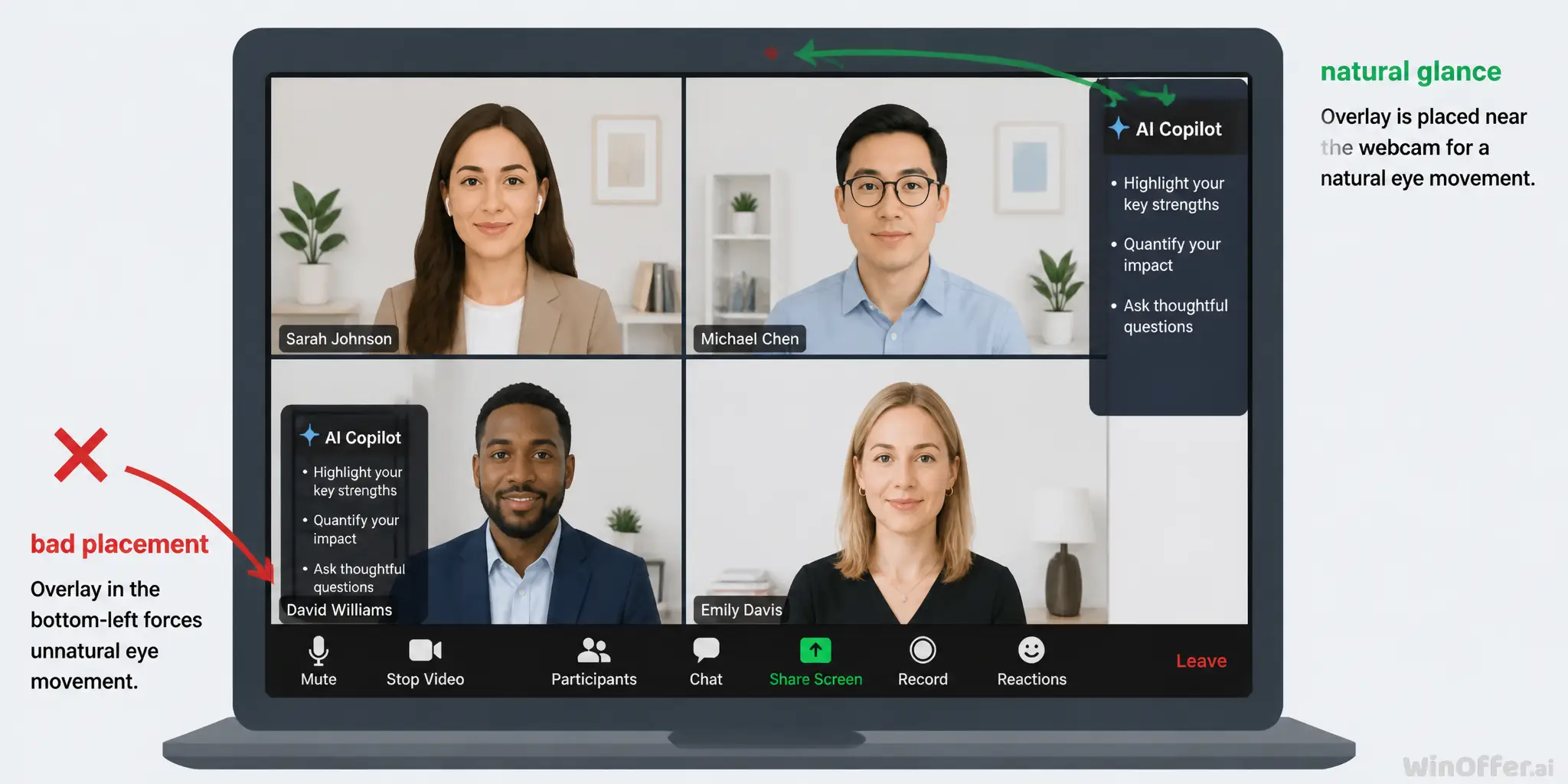
- Position the copilot overlay near your webcam so your glance pattern looks like normal note-checking.
- Run a mock test with a friend — share your screen, record the call, and confirm the overlay does not appear.
- Prepare a fallback plan — know what you’ll do if the tool fails, lags, or you’re asked to share more than expected.
After that checklist, slow down and inspect the details. First, audio routing. A true AI interview copilot that works with Zoom should capture the call locally. That means it listens through your machine, not by entering the meeting as a bot. Microsoft’s Teams materials and multiple vendor docs describe these local capture patterns, while Zoom’s participant list only reflects actual meeting participants.
Next comes screen sharing. Never treat “Share Screen” as one big button. Treat it like opening the wrong door on stage. Share only the exact app or display you intend to show. Research from vendor walkthroughs and platform notes repeatedly stresses mock testing because behavior can differ by setup, display arrangement, and sharing mode.
Then comes placement. Keep the overlay close to your webcam, not off in the far corner. This turns your glance into the digital version of checking a note card instead of darting toward a second script. That small shift lowers the chance of looking like you’re reading from an invisible teleprompter.
There are also platform quirks. Note that meeting modes and layouts can behave differently across platforms and special views, including cases like breakout rooms or alternate meeting displays (vendor claim). So test the exact setup you plan to use, not a rough cousin of it.
Tools like WinOffer.ai handle most of this setup in under 5 minutes—you upload your resume, select the interview platform, and the audio and display configuration is largely automated, based on the vendor’s product description. If you want to install and test that workflow, you can use Download WinOffer.ai.
During Your Interview: AI Interview Copilot Delivery Tips
This is where many people get it backward. The copilot is not your voice. It’s your invisible earpiece. Useful, yes. But if you let it drive, you’ll sound like someone wearing a suit that doesn’t fit. Learning how to use AI copilot in Zoom interview settings without sounding scripted takes practice.
The Paraphrase Framework
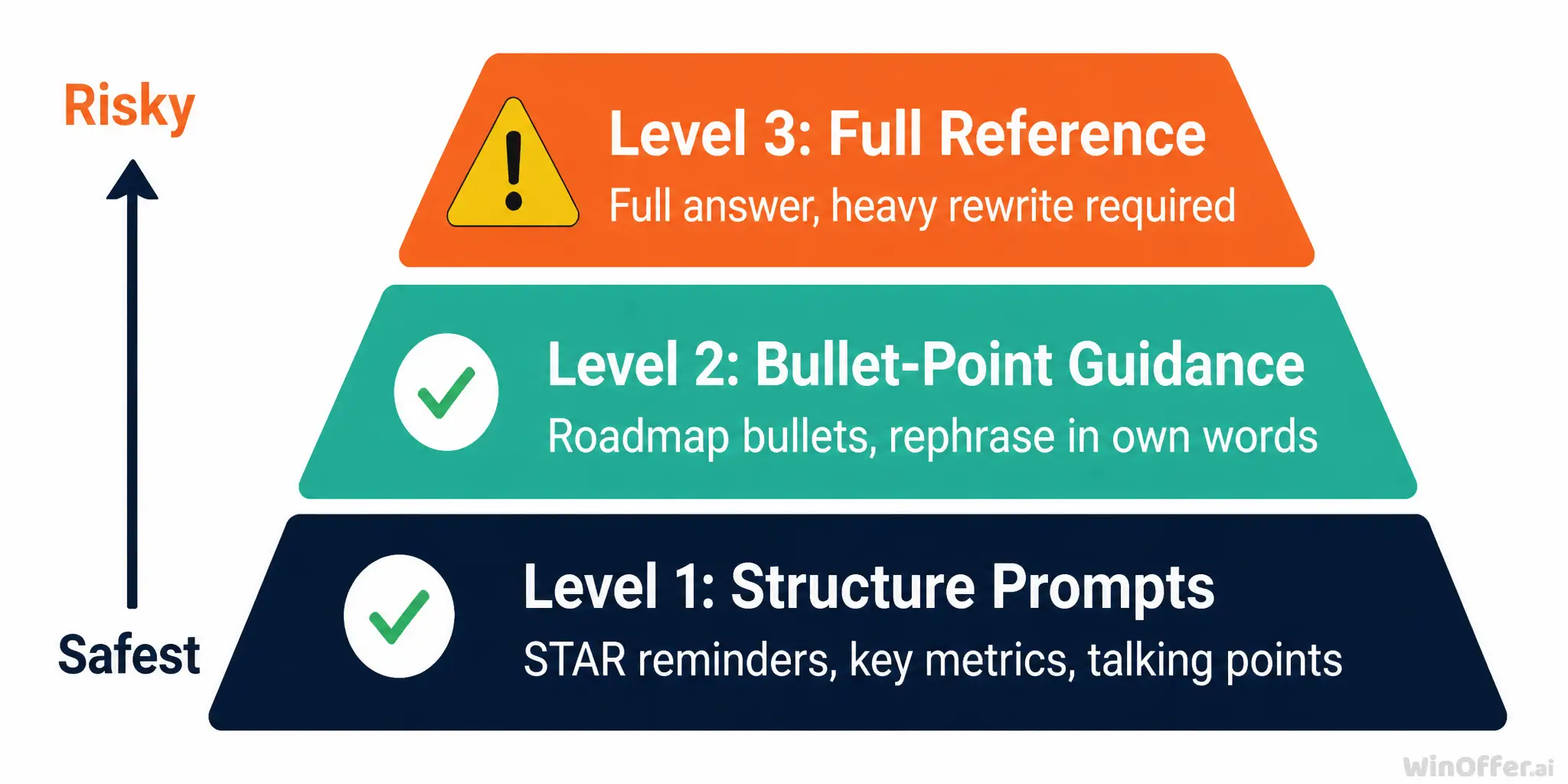
There are three healthy ways to use a copilot during a live interview:
- Structure prompts — use it for STAR reminders, key metrics, and major talking points. You supply the story.
- Bullet-point guidance — use short bullets as a roadmap, then translate each one into your own language.
- Full suggestion reference — glance at the longer answer, but rewrite it heavily in real time and add your own specifics.
For most people, Levels 1 and 2 are safest. Nervous candidates may lean into Level 3 at moments, but that becomes risky fast if you repeat polished phrases you wouldn’t normally say. Multiple vendor guides warn that robotic delivery and style mismatch are where candidates get into trouble (vendor guidance).
Behavioral Dos and Don’ts
For AI copilot for behavioral interview questions, structure beats scripting every time.
DO:
- Use natural thinking pauses. “That’s a good question—let me think for a second” buys real time and sounds human.
- Keep your eyes near the webcam, not fixed on the prompt.
- Pull structure, metrics, and sequence from the tool, then tell the story in your own words.
- Vary answer length and rhythm.
DON'T:
- Read full responses word for word.
- Pause for the exact same amount of time before every answer.
- Use jargon or numbers you can’t defend.
- Rely on the copilot for follow-up questions where detail and authenticity matter most.
One Reddit pattern shows this clearly. In discussions on r/leetcode and related interview threads, candidates often describe freezing on broad prompts, then recovering once they turn their prep into short frameworks rather than full scripts. On Product Hunt and G2-style review discussions for interview assistants, users also praise quick bullet prompts but complain when long generated answers are too hard to deliver naturally under pressure. That experience tracks with the broader evidence: the smaller the cue card, the more human you sound.
What If Things Go Wrong?
Even a good system can wobble. That’s why your backup plan matters more than your perfect plan. Any AI interview assistant undetected promise from a marketing page is incomplete if it doesn’t include failure scenarios.
| Scenario | Recovery Strategy |
|---|---|
| Copilot crashes mid-interview | Rely on your preparation. Say "Let me gather my thoughts for a moment." Transition to answering from your own knowledge. |
| Audio stops capturing | Switch to manual mode. Don't adjust settings during the live call — it's noticeable. |
| Overlay becomes unexpectedly visible | Minimize immediately. Have a natural cover story: "Sorry, a system notification popped up." |
| Interviewer asks to share your full desktop | Decline politely: "I have personal items on my desktop. Can I share just the relevant application?" Or share a single window that doesn't contain the copilot. |
| AI gives a wrong or irrelevant answer | You are the final filter. Always verify before speaking. If you said something inaccurate, correct yourself naturally: "Actually, let me revise that..." |
| Internet lag affects copilot response time | Buy time naturally: "That's an interesting question. I want to give you a thorough answer..." |
The real principle is simple: the best users of a copilot are the ones who don’t fall apart without it. Preparation is your engine. The tool is the spare tire.
Ethics, Risks, and Your Trade-offs
This section matters more than any setup trick. Plenty of content online treats an undetectable AI tool for video interviews like a magic cloak. It isn’t. It’s a trade-off machine. No stealth AI interview helper changes that reality.
The Ethical Spectrum
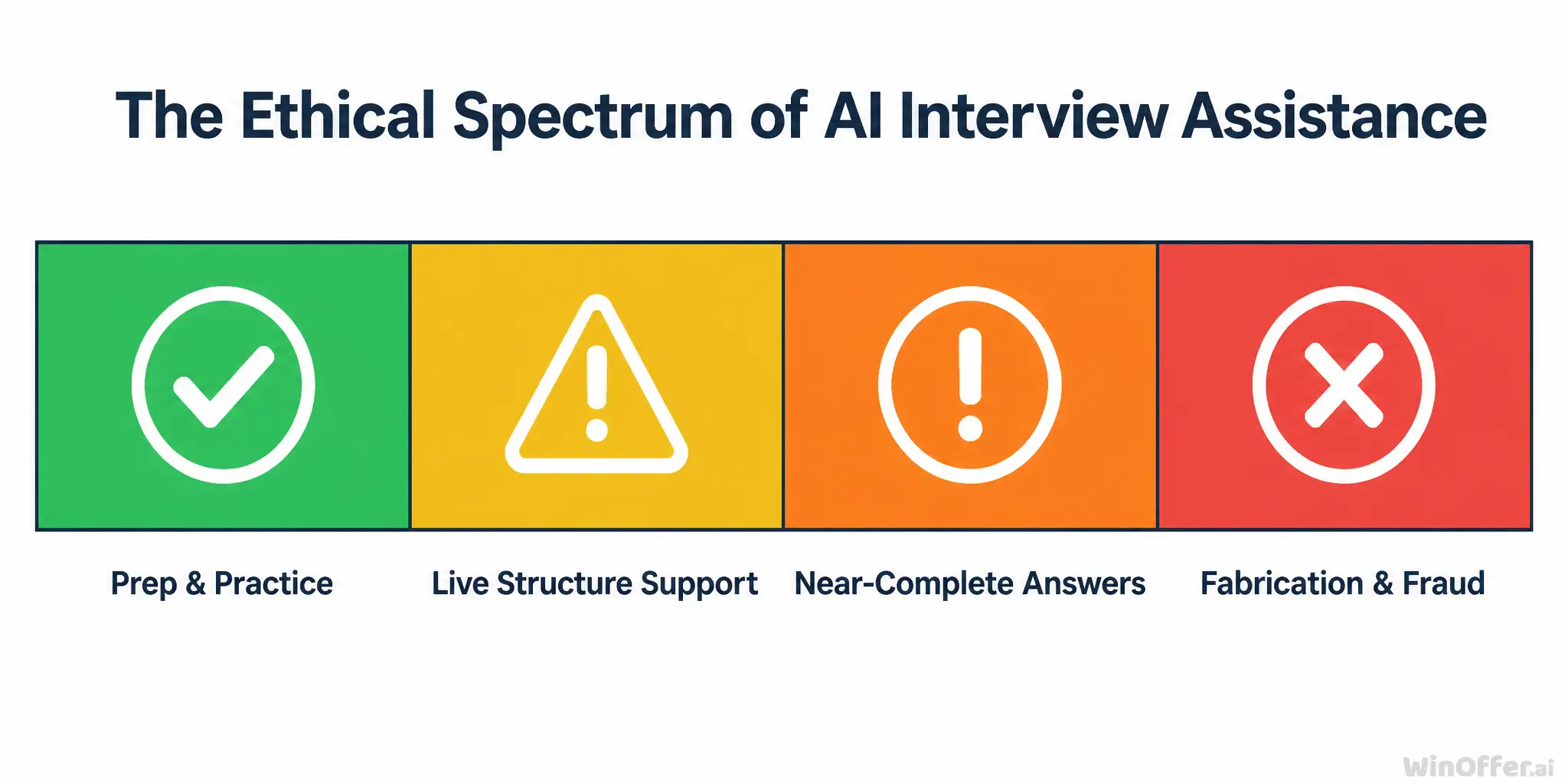
Think of live AI assistance as a spectrum, not a light switch.
- Green zone — using AI for prep: mock interviews, question generation, answer refinement, feedback loops.
- Yellow zone — using AI for live structural support: STAR reminders, talking points, memory prompts.
- Orange zone — leaning on AI for near-complete answers to questions you should be able to handle yourself.
- Red zone — fabricating stories, inflating credentials, or presenting competence you do not have.
That framing lines up with employer guidance and institutional AI policies. Greenhouse’s interview policy says undisclosed live AI help can be disqualifying. SHRM and Fisher Phillips both push employers to create clear rules because the line is getting blurry fast.
There’s also a real accessibility angle. For candidates dealing with language friction, anxiety, or certain neurodivergent processing challenges, real-time support can function less like a shortcut and more like stabilizers on a bicycle. Even then, transparency and employer policy still matter.
Legal Landscape
Most laws do not specifically ban a candidate from using AI assistance during an interview. But that doesn’t make the area risk-free.
Illinois’ AI Video Interview Act and New York City’s Local Law 144 focus on employer-side AI use, consent, notice, and audit duties rather than candidate-side live help, as legal analyses from Burr & Forman and Amundsen Davis explain. GDPR and CCPA add data transparency obligations around personal information processing, as Glean notes in its compliance overview.
So what’s the practical takeaway? Law is only one referee. Employer policy may be stricter than statute, and policy is often what decides the outcome.
The Long-Term Skills Question
Here’s the thing. If you never learn to think through your own stories, trade-offs, and examples, live assistance becomes a fast track to dependency.
Using a copilot is a bit like GPS. Helpful on a messy route. Reassuring in a storm. But if you never learn the map, one dead battery leaves you stranded. That’s the deeper risk.
The Atlantic reported that some companies are shifting interviews back on site in response to covert AI use. CNBC covered Google’s response to AI-assisted cheating concerns in coding interviews. Those reactions show where the market is heading: more scrutiny, more policy, more pressure.
So what’s the bottom line? Use AI to sharpen your skills first. If you use it live, use it like guardrails on a mountain road—not a substitute driver.
The Smart Way to Use AI for Interview Prep
If you want the safest value from this category, focus on preparation first and live use second. That’s where AI usually earns its keep.
Your Week-Before Preparation Timeline
| Timeline | Action | Purpose |
|---|---|---|
| 7 days before | Upload resume + JD to your copilot platform; review generated likely questions | Familiarize yourself with question patterns and copilot output quality |
| 5-6 days before | Run 2-3 AI-powered mock interviews with feedback | Practice answering with copilot support; identify weak spots |
| 3-4 days before | Practice full sessions WITHOUT AI assistance | Build genuine competence and reduce over-reliance |
| 2 days before | Technical dry run — test copilot setup, audio routing, Zoom Screen Capture Mode | Confirm everything works; record a test call with a friend |
| 1 day before | Review copilot's personalization settings; adjust tone, emphasis, example preferences | Fine-tune outputs to match your communication style |
| 30 minutes before | Open copilot; verify audio capture; confirm overlay position; take three deep breaths | Final check + mental readiness |
| During interview | Use copilot for structure prompts, not scripts; paraphrase everything; maintain natural rhythm | Execute your preparation |
| After interview | Review transcript (if available); identify weak answers; adjust copilot settings for next time | Continuous improvement loop |
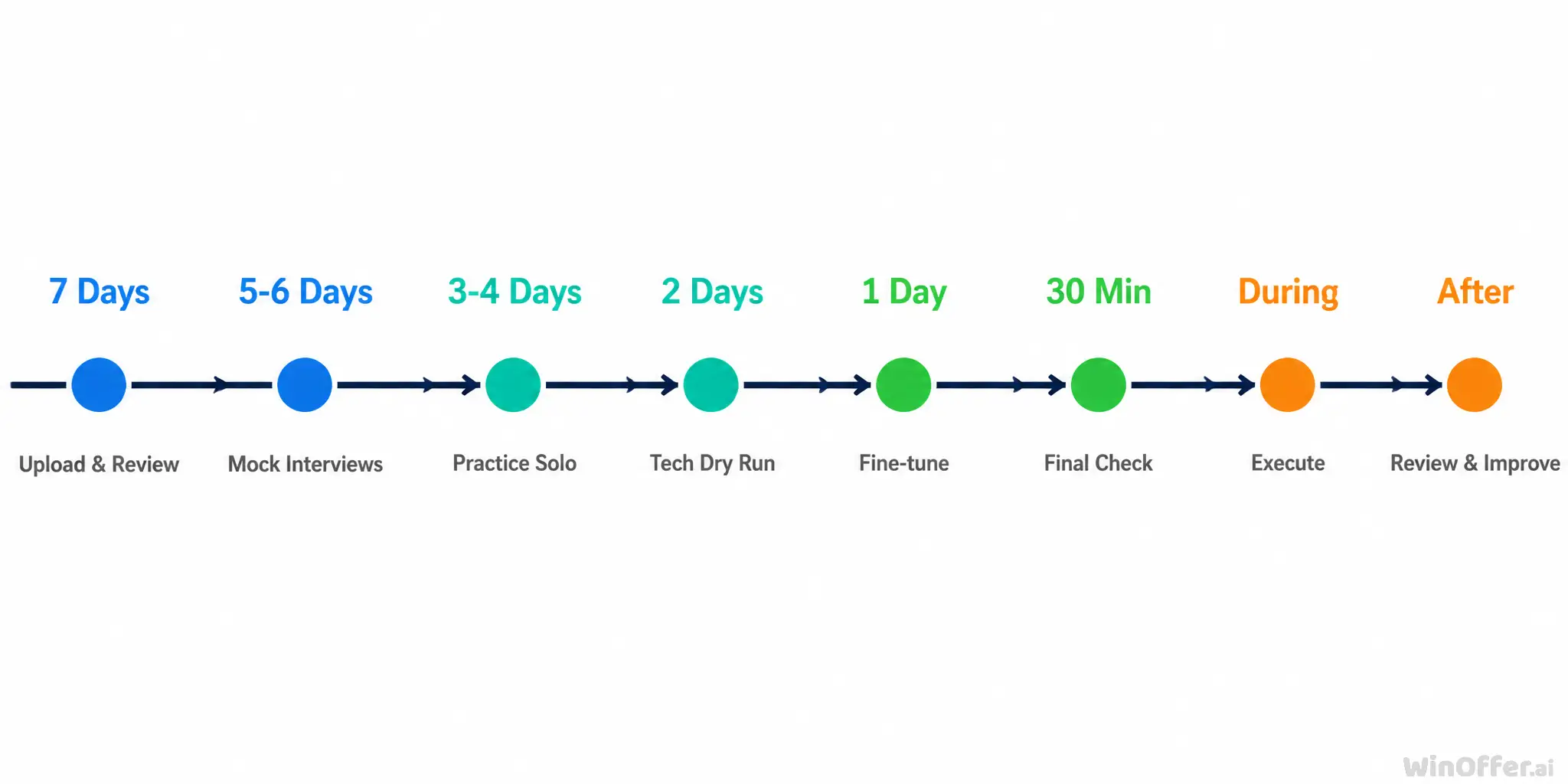
This timeline fills a gap most articles skip. They talk about stealth, not skill-building. But skill is what keeps you steady when latency spikes, the question twists, or the tool says something dumb.
A strong prep cycle usually looks like this: use AI to surface likely questions, run mock rounds, identify weak stories, tighten your examples, then practice without any support. That alternating rhythm matters. It stops the tool from becoming a crutch and turns it into a coach.
Used this way, AI becomes a flight simulator rather than an autopilot. You build muscle memory before takeoff.
Practice Makes Permanent
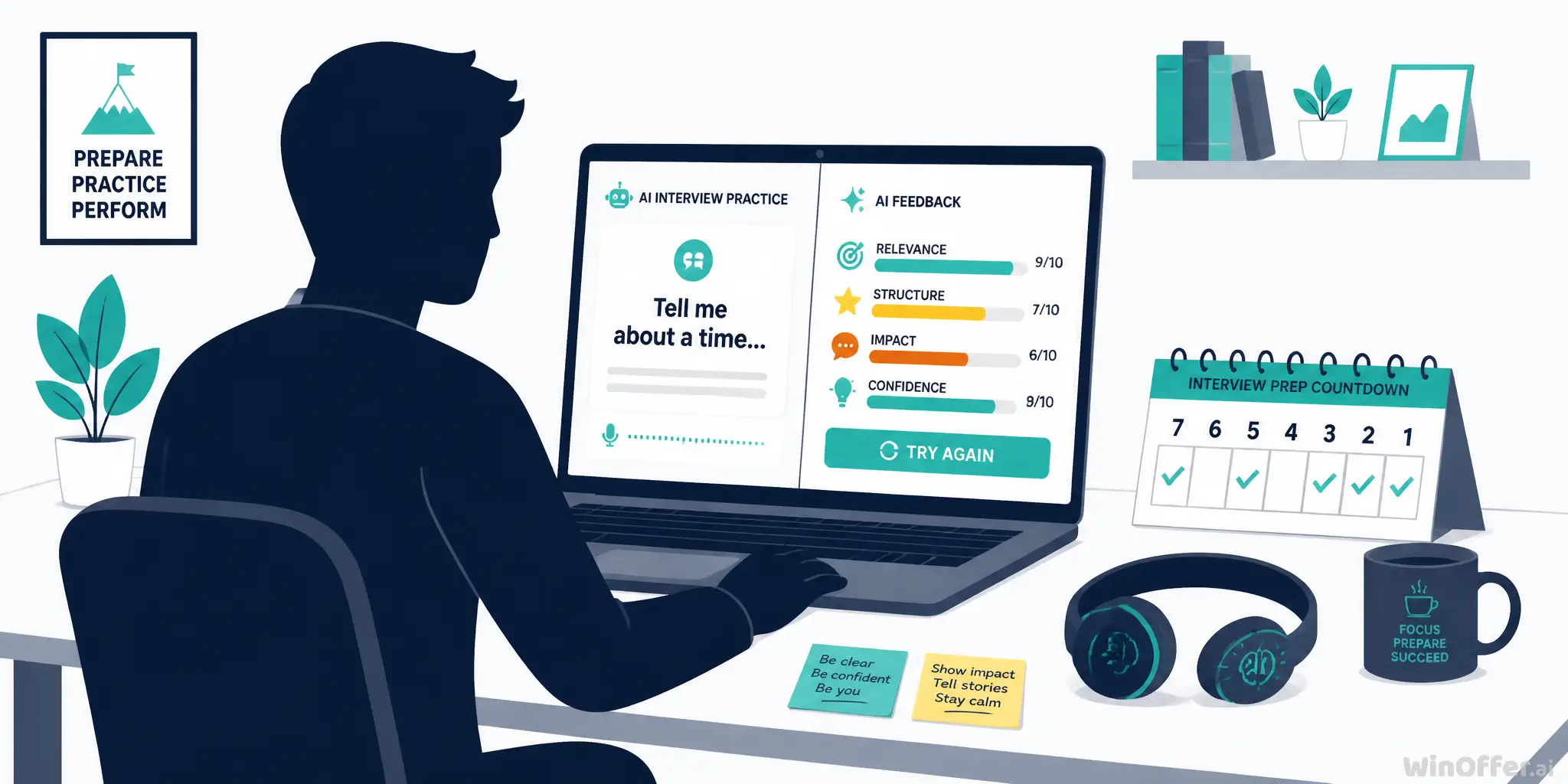
The best loop is simple: mock with AI feedback, iterate, practice without AI, then repeat. Over time, frameworks like STAR, SOAR, PREP, and hypothesis-driven problem solving should move from the screen into your own habits.
WinOffer.ai offers an AI Mock Interview mode that generates role-specific questions and structured feedback, based on the brand’s product materials. Combined with its live copilot workflow, it supports a full prep-to-performance cycle rather than just live prompting. If you want to explore that system, start at WinOffer.ai or review WinOffer.ai pricing.
Your goal isn’t to need rescue. It’s to become the kind of candidate who can swim without the life jacket—and still appreciates having one nearby. The right AI interview copilot gives you that confidence without becoming a dependency.
FAQ
Can Zoom detect an AI copilot running on my computer?
Zoom’s public documentation does not indicate native scanning for third-party desktop apps during standard calls. But that doesn’t remove risk. External proctoring tools, screen-sharing choices, and behavioral signals can still expose live assistance.
How does an AI interview copilot technically work?
Most tools follow a simple chain: local audio capture, speech-to-text transcription, question classification, RAG-based answer generation, and private on-screen display. That pipeline lets suggestions appear quickly enough to fit a natural response pause.
Is it ethical to use an AI copilot during interviews?
It depends on how you use it and what the employer allows. Preparation is widely accepted. Live structural help sits in a gray area. Fabricating experience or skills crosses a much clearer line.
Will I sound robotic if I use a copilot?
Only if you read it like a script. Short cues, paraphrasing, and practice make a huge difference. The tool should prompt your thinking, not replace your speaking voice.
What if my interviewer asks me to share my screen?
Share a specific application window when possible, not your full desktop. Desktop-app approaches may stay out of the share picker when they use OS-level display exclusion. If needed, you can also politely ask to share only the relevant app.
What types of questions can an AI copilot help with?
It can support behavioral questions with STAR-style structure, technical questions with steps and trade-offs, case questions with frameworks, and situational questions with PREP-style organization. Personalization improves when your resume and job description are strong.
Do AI copilots work with platforms other than Zoom?
Desktop-app copilots generally work anywhere your device can capture local meeting audio, including Teams, Meet, Webex, and browser-based interview platforms. Browser extensions are more limited because they depend on the browser environment.