
 Mac Installation Tips
Apple could not verify WinOffer?
Don't worry, this is normal. Please rest assured that WinOffer is 100% safe and official.
- Go to System Settings.
- Click on Privacy & Security.
- Scroll down to the Security section.
- You will see "WinOffer" listed there. Click the Open Anyway button next to it.
WinOffer is damaged?
- Open the Terminal application.
- Paste this code:
-
xattr -cr /Applications/WinOffer.app && open /Applications/WinOffer.app - Press Enter to run.
Windows Installation Tips
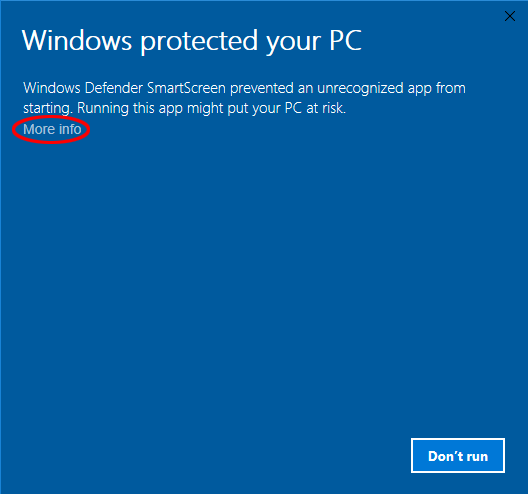
Is the "Windows protected your PC" warning normal?
Yes. Rest assured, WinOffer is 100% safe and official.
Why does this happen?
This is a standard automated response from Microsoft Defender SmartScreen when encountering newly released, advanced AI software. Because our assistant uses sophisticated real-time analysis processes to support your interview practice, Windows may initially classify it as "unknown" until its global database fully recognizes our publisher identity. This is a precautionary measure for innovative tools, not an indication of a virus or security threat. Think of it as Windows being overly cautious with new technology.
How to proceed safely (Takes 5 seconds):
- On the blue warning screen, click the "More info" link.
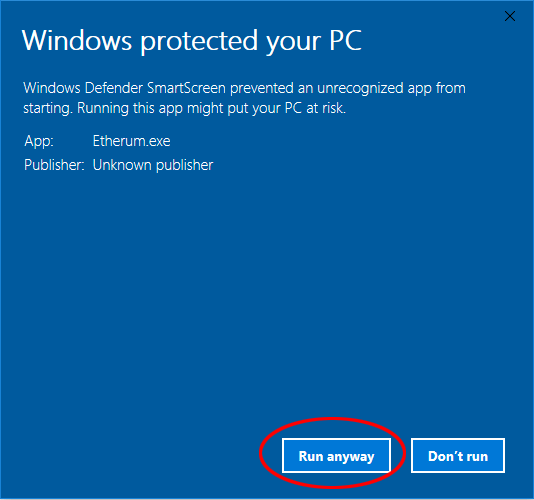
- A new button will appear at the bottom. Click "Run anyway".
- The installation will start immediately, and you can begin your interview prep.
✅ Downloaded from our official website? You are completely safe to proceed.
Join thousands of job seekers who trust WinOffer to land their dream jobs.